Stock tracking starts with one item. Turn it on, tell InvoiceKaro how many you have today, and from then on every bill and every invoice keeps the number honest.
Turn on tracking for an item
- 1Open Product Catalog (on a phone: More → Product Catalog).
- 2Select the item and click Edit item, or click New item to add one.
- 3Under Stock, tick Track stock for this item. Leave it off for services and anything you don't count.
- 4Optionally set Low-stock alert at. You'll be warned when the count falls to that figure or below.
- 5Click Save changes (or Add item for a new one).
Set the opening stock
Opening stock is what you're starting with today. Enter a quantity of zero or more; it can only be set once for each item. After that, use a correction with a reason.
- 1Open Inventory and stay on the Stock tab.
- 2Find the item and click Opening stock on its row. On a phone, tap ⋯ on the row first.
- 3Enter the Quantity on hand you physically have and, if you know it, the Cost per unit (optional).
- 4Click Set opening stock. The button disappears from that row once it's set.
Correct a count
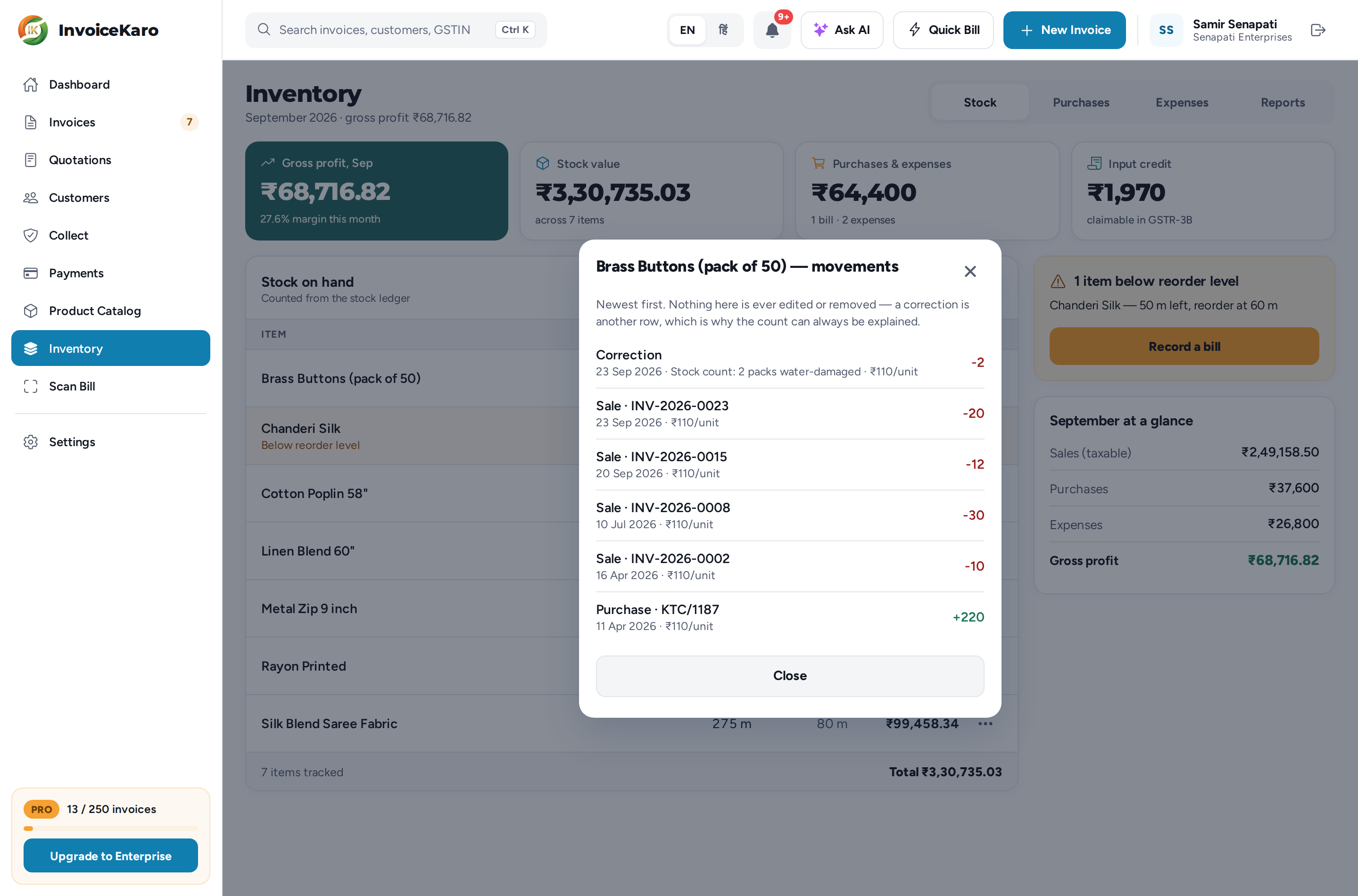
Stocktake found four instead of six? Click Adjust on the item. The sheet shows the current count. Enter a non-zero Change in quantity, not the new total, so -2 removes two. Add a Reason of at least three characters, then click Save correction.
Low stock and negative stock
| What you see | What it means | What to do |
|---|---|---|
| Below reorder level (amber) | The count is at or below the item's Low-stock alert at figure. | Order more. The Stock tab's alert card has a Record a bill button, or raise a purchase order. |
| Negative — needs a stock correction (red) | The count has gone below zero. | Almost always an unrecorded purchase. Record the bill, or ask the owner to correct the count. |
A negative count is allowed when a valid sale exceeds recorded stock. It's flagged and left out of your stock value rather than subtracted from it. The same states show as Low stock and Needs a stock correction in the Product Catalog.
See the history behind a number
Click History on an item to see its latest 100 movements, newest first: opening balance, purchases, sales, reversals and corrections, with their references. Corrections add entries rather than rewriting earlier movements.