
A purchase bill is how stock comes in. Recording one adds to your count and updates what each item costs you, the figure every later sale uses to work out profit. Open Inventory → Purchases.
Record a bill
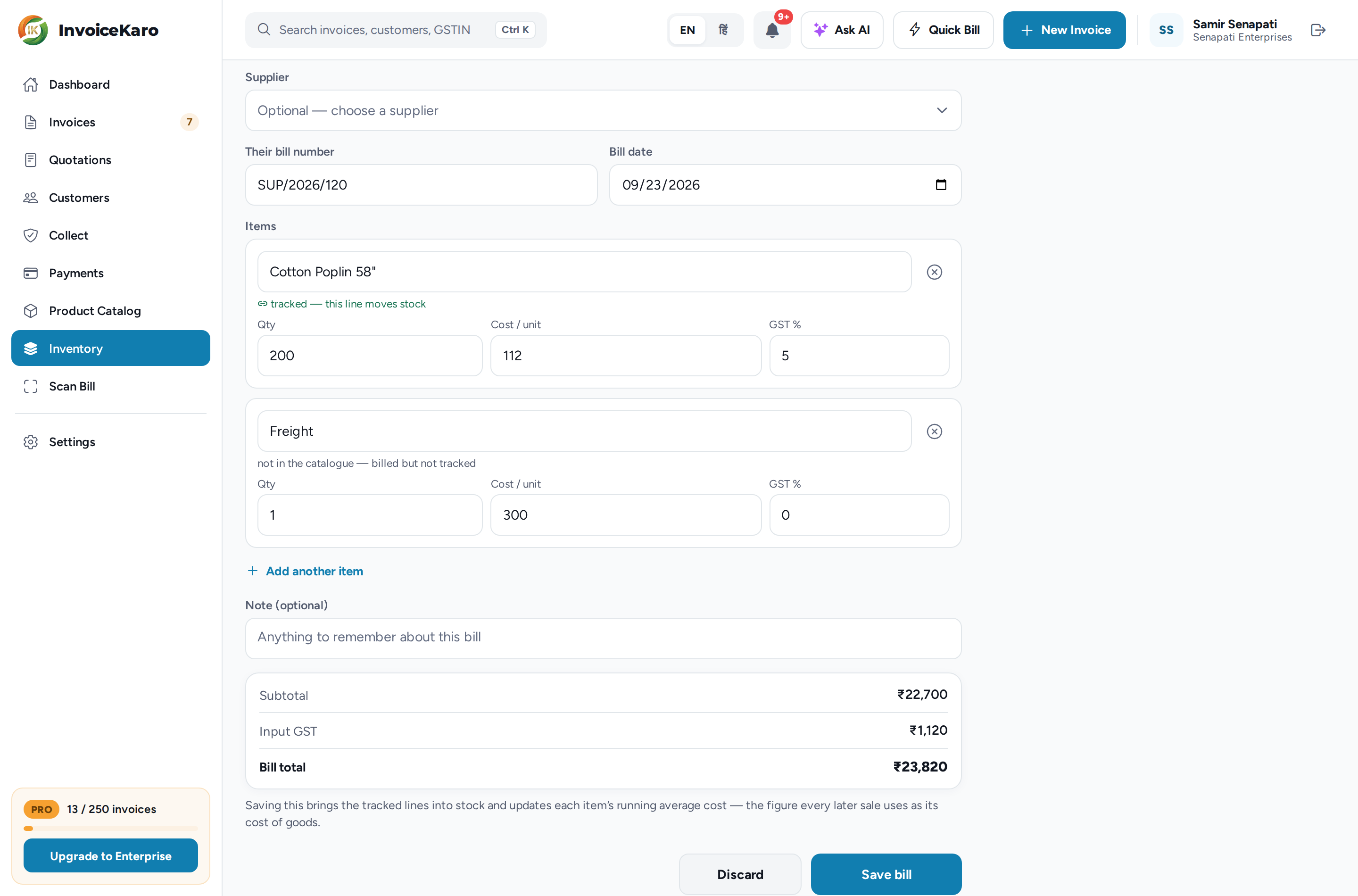
- 1In Inventory → Purchases, stay on Bills and click Record a bill.
- 2Choose the Supplier (optional). Enter Their bill number and the Bill date. It's their document, so nothing is numbered for you.
- 3Add the lines. Start typing to search your catalogue. Picking an item links the line, so it moves stock.
- 4Enter the Qty, Cost / unit and GST % for each line. Click Add another item for more.
- 5Add a Note (optional), check the Subtotal, Input GST and Bill total, then click Save bill.
Suppliers
The Supplier list shows the parties saved as suppliers. If you haven't got any, leave it blank: the bill is still recorded, and shows as Unnamed supplier on the register.
Fill a bill in from a photo
Got the bill on paper? Open Scan Bill, upload or photograph it, and after the scan choose Purchase bill. The bill form opens with the bill number, date and lines already filled in. Check every line, especially the GST rate, pick the supplier and save. If the supplier on the scan isn't one of your saved suppliers, the name is kept in the bill's note. See Scan Bill.
How cost is worked out
InvoiceKaro uses a weighted average. Buy 10 at ₹100 and later 10 more at ₹140, and the average becomes ₹120, not a jump to the newest price. That average is what each sale records as its cost, so your margin doesn't lurch every time a supplier changes their price. The item's Cost price in the catalogue is updated to the latest bill's cost.
Purchase orders: goods on the way
A purchase order records what you've asked a supplier for. It moves nothing, because ordering stock is not having stock.
- 1In the Purchases tab, switch to Orders and click Raise an order.
- 2Choose the supplier, set the Expected by date and the Order date, and add the lines you're ordering. Click Save order.
- 3The order shows as Open, and turns Overdue by itself once the expected date passes.
- 4When the goods arrive, click Received on the order (on a phone, tap ⋯ on the row first), then confirm.
The purchase register
The Bills view is your purchase register: what you bought, from whom and what it cost. It shows Total billed, the number of Open orders, and the Input GST recorded on your bills. These recorded amounts do not establish input tax credit eligibility. The By supplier card splits the total by supplier.
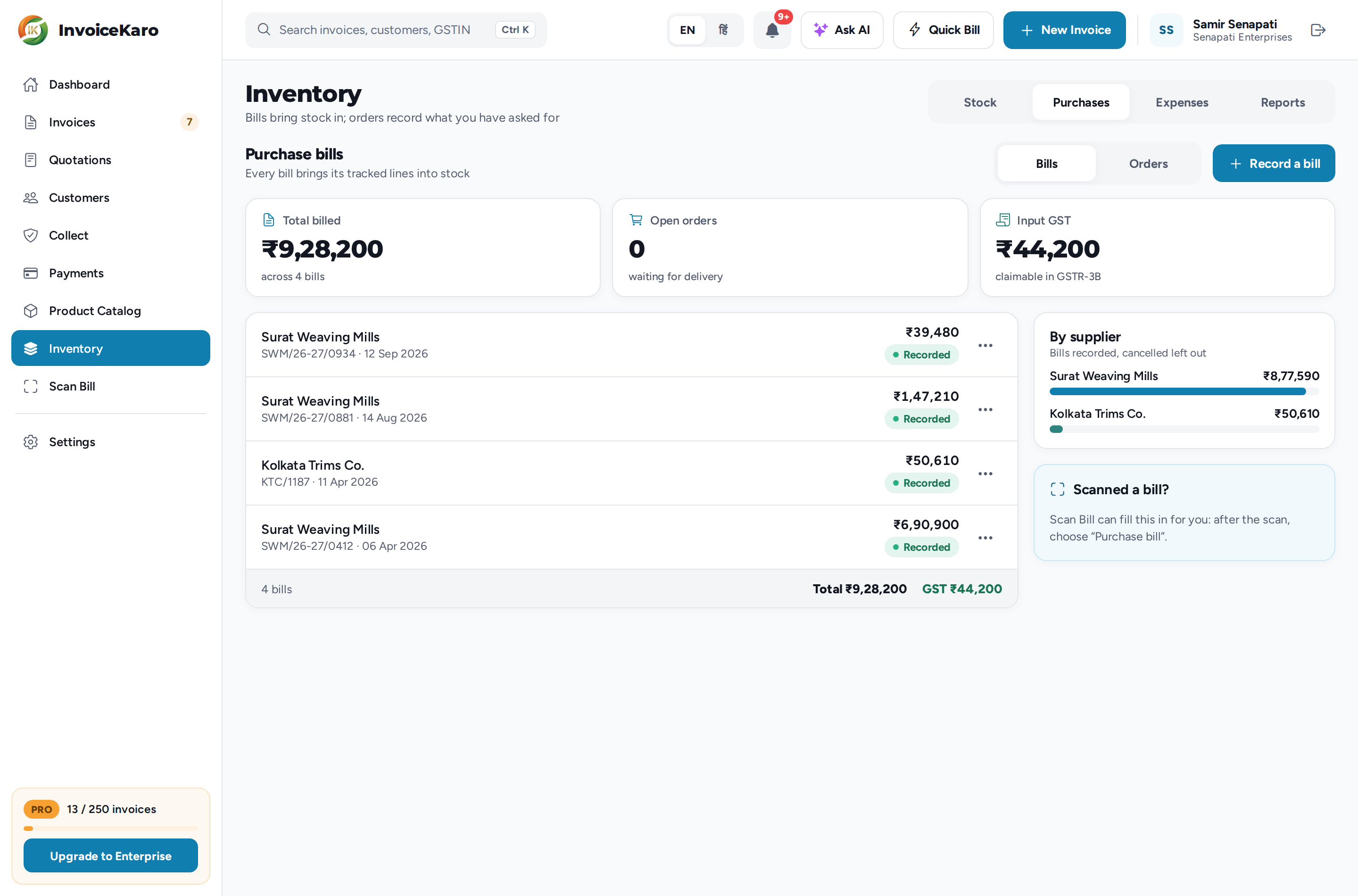
Cancel bill hands the stock back. The bill stays on the register marked Cancelled so the history still reads correctly, but it stops counting toward your totals.